Friday, March 20, 2015

This operation has been cancelled due to restrictions in effect on this computer. Please contact your system administrator.

[Window Title]
Restrictions

[Content]
This operation has been cancelled due to restrictions in effect on this computer. Please contact your system administrator.

[OK]

We encountered this dialog with Citrix XenApp 6.5 sessions when using various programs.  The issue is this dialog is generated when a button would open a dialog and the default path was %userprofile% or %temp% or any other path that defaulted and started with C:\.  The cause of it is a group policy setting.  If you disable the viewing of the drive letter that the dialog is trying to default to; this message appears.  For us, some programs were trying to default to %TEMP% which is trying to go "C:\Users\myTest\AppData\Local\Temp\1".  Since "C:\" is in the path, this dialog was disallowed and the message popped up.

NOTE: This message will only pop up if the program uses the standard Windows dialog.  If a program uses a custom dialog it will not receive this message.

To avoid this issue we wanted to default to the users 'My Documents' folder, which is redirected and stored on an allowed drive letter.  But My Documents isn't a variable we can utilize.  But we can create a script that launches prior to our program launching and create the variable:


I used PowerShell.exe to get and return the variable as Reg.exe is disallowed and reg.exe wasn't returning the full path if the 'Personal' key had a space in it; powershell would return the full value.

In addition to setting this variable, our program(s) could now be configured to default to the new variable.

Wednesday, March 04, 2015

AppV5 - Package failed configuration in folder with error 0xA040132A-0x3

When publishing AppV5 applications on a PVS server we sometimes encounter an issue where packages do not load.  There are usually events logged to event viewer with the following:


Package {5075e8a4-4335-4101-991e-be88f5862575} version {940e4d49-af37-428c-a129-3bd37e3e4539} failed configuration in folder 'D:\AppVData\PackageInstallationRoot\5075E8A4-4335-4101-991E-BE88F5862575\940E4D49-AF37-428C-A129-3BD37E3E4539' with error 0xA040132A-0x3.

With another event that follows:


Part or all packages publish failed.
 published: 14
 failed: 10
Please check the error events of 'Configure/Publish Package' before this message for the details of the failure.


This issue is typically caused by two factors: folders not existing in the "PackageInstallationRoot", in my example that is D:\AppVData\PackageInstallationRoot.  You can find this value in the registry here:
HKEY_LOCAL_MACHINE\SOFTWARE\Microsoft\AppV\Client\Streaming /v PackageInstallationRoot /d D:\AppVData\PackageInstallationRoot

and registry entries existing here:
HKEY_LOCAL_MACHINE\SOFTWARE\Microsoft\AppV\Client\Streaming\Packages


There are more values in the registry then the folder above.

What you will find is a mismatch between the number of keys in Packages and the number of folders in your PackageInstallationRoot path.  For us, our error was we had 14 folders existing in that path, but 10 of them were missing.  But we had all 24 values existing in the registry.

To fix this error I created a script to create the missing folders that were found in the registry and doing a get-appvpublishingserver | sync-appvpublishingserver

D:
cd D:\AppVData\PackageInstallationRoot
for /f "tokens=1-6" %%a IN ('reg query HKEY_LOCAL_MACHINE\SOFTWARE\Microsoft\AppV\Client\Streaming\Packages /s ^| findstr /i /c:"PackageRoot"') DO mkdir %%c

And then all applications were able to be published without issue.


Friday, February 20, 2015

APPV5 - Virtualization Template

Use if you want, or not.  This virtualization template is to be applied against the sequencer.  I've found it removes a lot of useless captured information that can get caught in a sequence.


Wednesday, February 18, 2015

Using Process Monitor to make an application installer for 16bit .exe's

http://blogs.msdn.com/b/aaron_margosis/archive/2014/09/05/the-case-of-the-app-install-recorder.aspx

This is a great blog utilizing Process Monitor to create an application installer.

Thursday, February 05, 2015

Becareful of your AVHD to VHD chains with Citrix PVS with multiple sites

Citrix PVS is a great product.  With a single VHD file you can boot multiple machines and with the new RAM caching technology introduced in PVS 7.1 it's super fast.

We have Citrix PVS 7.1 setup across 5 data centres in 3 geographically disperse regions with 2 primary sites each having a primary datacenter and a DR datacenter.  Each datacenter has high-speed local share for our PVS images.  Our Active Directory architecture is 2003 level.  Our PVS setup is configured to stream the vDisks from a local file share.  This information is important to add context for our process.

I found an issue in one of our datacenters when we had an issue and had to reboot some VM's.  Essentially the issue is our target devices were booting slow.  Like really, really, really slow.  In addition to that, once they did boot; logging into them was slow.  Doing any action once you were logged in was slow.  But it did seem to get faster the more you click'ed and prodded your way around the system.  For instance, clicking the 'Start' button took 15 seconds to open the first time but was normal afterwards, but clicking on any sub-folders was slow with the same symptoms.

This is a poor performing VM.  Notice the high number of retries, slow Throughput and long Boot Time

Conversely, connecting to a target device at the other city showed these statistics:
Example of a much, much better performing VM.  14 second boot time, throughput about 10x faster than the slower VM and ZERO retries.

So we have an issue.  These two separate cities are configured nearly identically but one is suffering severely in performance.  We looked at the VMHost that it the VM was hosted at, but moving it to different hosts didn't seem to make any difference.  I then RDP'ed to our VM and launched ProcessMonitor so I could watch the bootup process.  This is what I saw:


chfs04 is the local file server hosting our vDisk.  citrixnas01 is a remote file server on a WAN connection in the datacenter in the other city.  For some reason, PVS is reading and sharing the *versioned* avhd file that resides on the local file share, but the base VHD file it is reading from citrixnas01.  This is, obviously, a huge issue.  Reading the base image over a WAN probably will result in the poor performance we are experiencing and the high retry counts for packets.

But why is it going over the WAN?  It turns out that the avhd file contains a section in it's header that describes the location of the parent VHD file.  PVS is simply using the native sequence built in to the VHD spec for the chain'ed disks.

Hex editing the avhd file reveals the chain path

(Un)Fortunately for us, our PVS servers can read the file share across the WAN and pull and cache data locally so the speedups tended to gain the longer the VM was in use.  In order to fix this issue immediately, we edited our hosts file on the PVS server to point to the local file server for citrixnas01.

After executing that change I rebooted one of the target devices in the *slow* site.

Throughput is now *much* better, but the number of retries is still concerning

Now, the tricky thing about this issue is we thought we had it covered because we configured each site to have it's own store:


Our thoughts were that this path is what the PVS service would look for when trying to find VHD's and AVHD's.  So when it would look for XenAppPn01.6.vhd it would look in that store.  Obviously, this line of thinking is not correct.  So it is important if you have sites that are distant that the path you use to create your version will correspond to the fastest, local, share in all your sites.  For us, our folder structure is identical in all sites so creating a host file entry pointing citrixnas01 to the local file share works in our scenario to start with.

EDIT - I should also note that you can see the incorrect file paths in process explorer as well.  Changing the host file wasn't enough, we also needed to restart the streaming service as the streaming service held cached data on how to reach the files across the WAN.  Process Explorer can show you the VHD files that the stream service has access to and where (under files and handles):
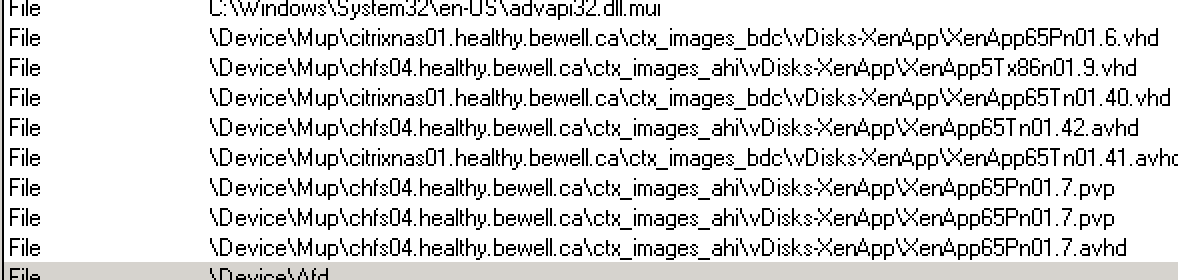
Citrixnas01 shouldn't be in there...  Host file has been changed...

After a streaming service restart:
Muuuuch better.