Monday, September 21, 2015

Troubleshooting Citrix Desktop Service - "The Citrix Desktop Service is starting." and then nothing.

I'm troubleshooting an issue with the Citrix Desktop Service on my home lab.  I have a Citrix XenApp/XenDesktop 7.6 installation and I have setup a Server 2012 R2 box with the "/servervdi".  Upon reboot, I see the Registration State as Unregistered.


Restarting the Citrix Desktop Service and checking the 'Application' Log for 'Citrix Desktop Service' yields only event ID 1028 - "The Citrix Desktop Service is starting."

However, when I 'Stop' the Citrix Desktop Service the Application event log gives up a few more details:

Event ID 1003 - Citrix Desktop Service
The Citrix Desktop Service failed to initialize communication services required for interaction between this machine and delivery controllers. 

If the problem persists please perform a 'repair' install action or reinstall the Citrix Virtual Desktop Agent. Refer to Citrix Knowledge Base article CTX119736  for  further information. 

Error details: 
Failed to start WCF services. Exception 'Object reference not set to an instance of an object.' of type 'System.NullReferenceException'

Unfortunately, this CTX article gives little to no details on event 1003 and is more of a shotgun attempt at solving issues as opposed to a nice, precise, surgical solution.

From the EventID 1003 we can see the Citrix Desktop Service is trying to reference WCF services and it has failed.

Citrix offers a tool called XDPing to try and diagnose issues, I ran it and had it return the following:


Googling the WCF errors with HTTP/1.1 and Error 503 results in lots of information on reconfiguring your IIS.  I'm not convinced this is the issue so I soldiered on...

When I procmon on 'BrokerAgent.exe' I see a few curious entires that maybe associated with 'System.NullReferenceException' (aka, not found) and those are some permissions stating that access is denied to some registry keys and/or some 'Name Not Found' on some CLSID items.


During this capture I can see a 'BrokerAgent.config' file referenced.  ("C:\Program Files\Citrix\Virtual Desktop Agent\BrokerAgent.exe.config" ) Diving into it reveals some additional logging we can enable:
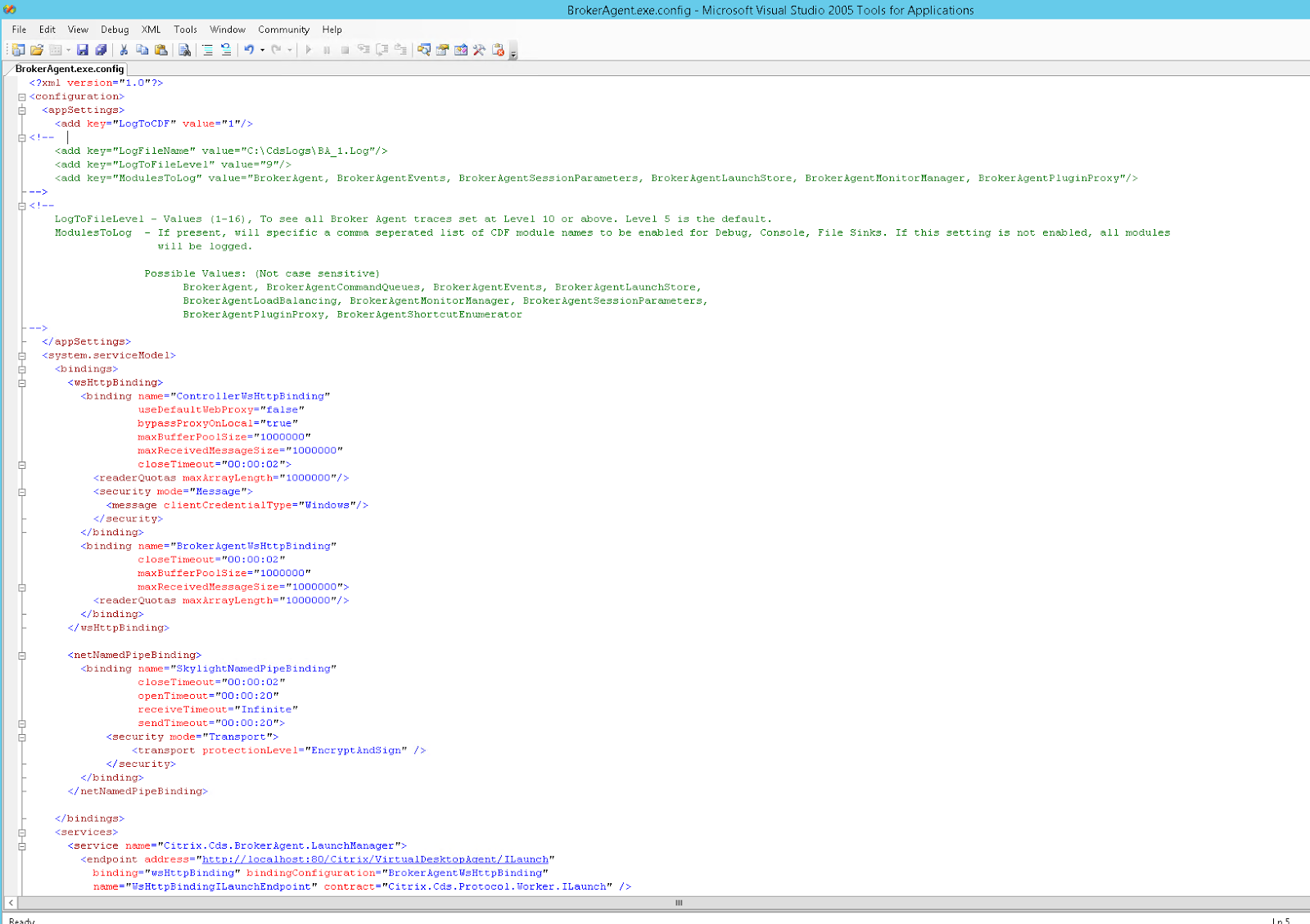
Verbose logging disabled by default


If we 'enable' the debug portions and create the C:\cdsLogs folder we can get some more information on what is going wrong.</p><p><br></p><table class=" style="margin-left: auto; margin-right: auto; text-align: center;" tr-caption-container="">

Logging Enabled


Stopping the 'Citrix Desktop Service', editing the .config file, creating the C:\cdslogs folder and starting the service yielded additional information.


We have a 'COM exception'.  The nice thing about this log file is we can compare the time stamps to the procmon logs and determine what was happening when this failed.


It appears we are missing SCService64.exe from our Citrix installation.  What is 'SCService64.exe'?  The registry tells me it's the 'IStackControl Type Library'.  Which matches up with the error 'ConnectToStackControlCOMServer'.

So, it appears we need to install SCService64.exe.  I do not know why or how it went missing but I suspect we can copy it over or extract from the Citrix source files if needed.

To extract the SCService64.exe source file, we can create an administrative installation of the "TS" VDA:

msiexec /a "\\x79-server\software\Citrix\XenApp_and_XenDesktop7_6\x64\Virtual Desktop Components\TS\IcaTS_x64.msi"
This makes a folder on the root of the C:\ called "Citrix" which installs all the files there:


I installed the Citrix VDA "WS" with /servervdi for some testing, but prior to that I had the regular "TS" VDA installed.  Perhaps some combination of my installation/uninstallation caused my issues.

Anyways, copying the SCService64.exe to the C:\Program Files (x86)\Citrix\System32 folder and restarting the 'Citrix Desktop Service' resulted in...


Registered, Hurray!

And what about our log file?

Previously it died around 'Setting up ALL LaunchManager WCF service'; this time we see:


Hurray!  It continues and operates without issue.

Be sure to re-disabled the logging on the BrokerAgent.config file and restart the service because I've found this BA_1.log can get to become a huge file.

Running XDPing this time results in [OK] across where the errors once were.

Friday, September 11, 2015

PNP_DETECTED_FATAL_ERROR

I rebooted my computer to this lovely Blue Screen Of Death (BSOD) message:

PNP_DETECTED_FATAL_ERROR


Attempting to reboot into Safe Mode also resulted in the same message.  I was able to boot into 'Recovery Mode' which is a 'Windows PE' mode that runs a stripped down version of Windows in RAM.  From here I enabled the network 'Kernel Debugging' by configuring some parameters in the BCD file.


The two parameters I set where:

bcdedit /store C:\boot\bcd /debug on
bcdedit /store C:\boot\bcd /dbgsettings net hostip:192.168.1.101 port:49152


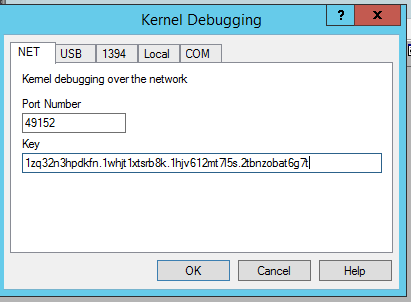
I needed to set the "/store" parameter to ensure I was manipulating my non-booting BCD file, and not the BCD file that Windows Recovery boots from.  Write down the key or save it someplace, you'll need it on the 'host' computer (see in the above screenshot).

Once here I downloaded and installed 'WinDBG.exe'.  Open windbg.exe and choose "File > Kernel Debug".  On the 'NET' tab, enter your 'Port' number and 'Key' (everything to right of the equal sign) and click 'OK'.


Even though I 'enabled' debug in my BCD file, I found I still needed to tap the 'F8' key while booting and select 'Debugging Mode'.  Once selected, my windbg.exe on my host computer sprang to life!


It turns out you need to enable symbols or else you get an incomplete picture.  After enabling symbols and running !analyze -v I got the following:


ctxusbm.  This is a Citrix driver for their Receiver client that passes through USB to a Citrix session. I had updated Receiver to 14.3.0.5014 last month and I probably hadn't rebooted my computer until Windows Update made me.  So that's probably why I'm experiencing this issue now.  To fix this issue, I rebooted into the Windows Recovery mode and deleted all instances of 'ctxusbm' from the SYSTEM hive.  Specifically, I deleted these locations:
HKEY_LOCAL_MACHINE\SYSTEM\ControlSet001\Control\Class\{CF2A3345-050B-41D0-BAF5-CD558EFAAE3B}
HKEY_LOCAL_MACHINE\SYSTEM\ControlSet001\Enum\Root\LEGACY_CTXUSBM
HKEY_LOCAL_MACHINE\SYSTEM\ControlSet001\services\ctxusbm

Upon the next reboot, my computer came back cleanly and operates without any issues.  I am going to keep this module removed until the next version of Receiver is released, hopefully, I won't have any more issues.  Issues with ctxusbm seem relatively prevalent with Citrix.


Friday, September 04, 2015

Performance differences in Citrix HDX Thinwire Encoders

Per my previous post, changing the Citrix HDX Thinwire Encoder on the fly, we can test the performance differences in the different encoder's Citrix provides.  I have done so by running through a demo of the Uniengine Heaven benchmark.  The demo is exactly 4 minutes and 20 seconds long.  I did a perfmon trace of the CPU %, total bytes sent in MBits/sec and the Thinwire Output in MBit/sec.

Time for some results!

Compatibility Mode (Encoder 0x0)

DeepCompressionV2Encoder (Encoder 0x1)

DeepCompressionEncoder (Encoder 0x2)

(Rollover the mouse on the next images to compare graphs)

CompatibilityMode vs DeepCompressionV2Encoder


CompatibilityMode vs DeepCompressionEncoder


DeepCompressionV2Encoder vs DeepCompressionEncoder


The cumulative totals should help us get an understanding of the differences between the encoders:

   CPU Total ThinWire Total Network Total (Mbytes)
DeepCompressionEncoder 5531.00 3693.28 540.51
DeepCompressionV2Encoder 5621.67 3684.75539.74
CompatibilityMode 4197.54 3690.58 553.21
   CPU Total ThinWire Total Network Total (Mbytes)
DeepCompressionEncoder 98.4% 100.0% 97.7%
DeepCompressionV2Encoder 100.0% 99.8% 97.6%
CompatibilityMode 74.7% 99.9% 100.0%
Interestingly, CompatibilityMode uses 25% less CPU then either DeepCompression Encoder.  From what I see though the frames per second appears less for CompatibilityMode then the other two.

Change Citrix HDX Encoder on the fly for testing

Rachel Berry posted an article on optimizing HDX for gaming.  In this article she highlighted that Citrix has some 'special' registry keys for modifying different parameters of the Thinwire encoder.  One of these keys was changing the encoder itself:

  • Encoder = 2 is Pure H.264 (YUV 4:2:0). As with most vendors this is H.264 4:2:0 format, it’s designed for a balance of quality and bandwidth primarily on video and high-bandwidth CAD parts (not much text). This is used by the HDX 3D Pro VDA.
  • Encoder = 1 is H.264+lossless text. This is used by default by the XenDesktop standard VDA and XenApp VDA. 
  • Encoder = 0 forces you to use Compatibility mode 
In terms used by HDX, it shakes out like so:

Encoder 2 = DeepCompressionEncoder
Encoder 1 = DeepCompressionV2Encoder
Encoder 0 = CompatibilityEncoder

The cool thing about these encoders is you can modify their values *on the fly* and it will take place immediately in your Citrix session. This video I made demonstrates this. I ran a 3D benchmark application and modified the encoder's on the fly. I zoomed into the FPS counter and put this in the bottom left corner as the text with moving images shows much better the difference in the encoders.  Without a doubt, the CompatibilityEncoder has the worst quality of all the encoders when it comes to video/moving images/3D/gaming.

Try to watch it in 1080p for maximum quality.


To change the encoder, you need to add/modify a registry key at HKLM\Software\Citrix\Graphics.  The type is DWORD32 named "Encoder" and the value is 0x0 to 0x2, depending on the encoder you want to try and use.

All testing was done with XenApp 7.6 on my home built lab.

Tuesday, September 01, 2015

Citrix XenApp, OpenGL pass-through and Nvidia GRID cards on Amazon EC2 (G2 Instances)

I'm attempting to do a Proof of Concept (POC) for a client and one of the ideas was to utilize the Amazon EC2 cloud to provide GPU instances to the users for their applications (Maya, SolidWorks, etc.).  In order to understand how GPU sharing works, I setup my home lab to take advantage of these features first, in order to understand how it operates.

Citrix provides documentation on setting up the GPU sharing.  For my test, I'm doing this on a bare metal Citrix server.  Essentially, the notes state that OpenGL is automatically shared and enabled and special steps must be taken for DirectX, OpenCL, CUDA and Windows Server 2012.  To enable GPU sharing for XenApp for these features, the following registry file will enable these:

Windows Registry Editor Version 5.00
[HKEY_LOCAL_MACHINE\SOFTWARE\Citrix\CtxHook\AppInit_Dlls\Graphics Helper]
"DirectX"=dword:00000001
[HKEY_LOCAL_MACHINE\SOFTWARE\Wow6432Node\Citrix\CtxHook\AppInit_Dlls\Graphics Helper]
"DirectX"=dword:00000001
[HKEY_LOCAL_MACHINE\SOFTWARE\Citrix\CtxHook\AppInit_Dlls\Multiple Monitor Hook]
"EnableWPFHook"=dword:00000001
[HKEY_LOCAL_MACHINE\SOFTWARE\Wow6432Node\Citrix\CtxHook\AppInit_Dlls\Multiple Monitor Hook]
"EnableWPFHook"=dword:00000001
[HKEY_LOCAL_MACHINE\SOFTWARE\Citrix\CtxHook\AppInit_Dlls\Graphics Helper]
"CUDA"=dword:00000001
[HKEY_LOCAL_MACHINE\SOFTWARE\Wow6432Node\Citrix\CtxHook\AppInit_Dlls\Graphics Helper]
"CUDA"=dword:00000001
[HKEY_LOCAL_MACHINE\SOFTWARE\Citrix\CtxHook\AppInit_Dlls\Graphics Helper]
"OpenCL"=dword:00000001
[HKEY_LOCAL_MACHINE\SOFTWARE\Wow6432Node\Citrix\CtxHook\AppInit_Dlls\Graphics Helper]
"OpenCL"=dword:00000001
In addition to this registry file, for Server 2012, the following Group Policy object is required:

  • On Windows Server 2012, Remote Desktop Services (RDS) sessions on the RD Session Host server use the Microsoft Basic Render Driver as the default adapter. To use the GPU in RDS sessions on Windows Server 2012, enable the Use the hardware default graphics adapter for all Remote Desktop Services sessions setting in the group policy Local Computer Policy > Computer Configuration > Administrative Templates > Windows Components > Remote Desktop Services > Remote Desktop Session Host > Remote Session Environment.
My initial setup is a Q87M-E system with a Intel 4771 and onboard graphics.  My system is setup with Windows 2012 R2 with Citrix XenApp 7.6.

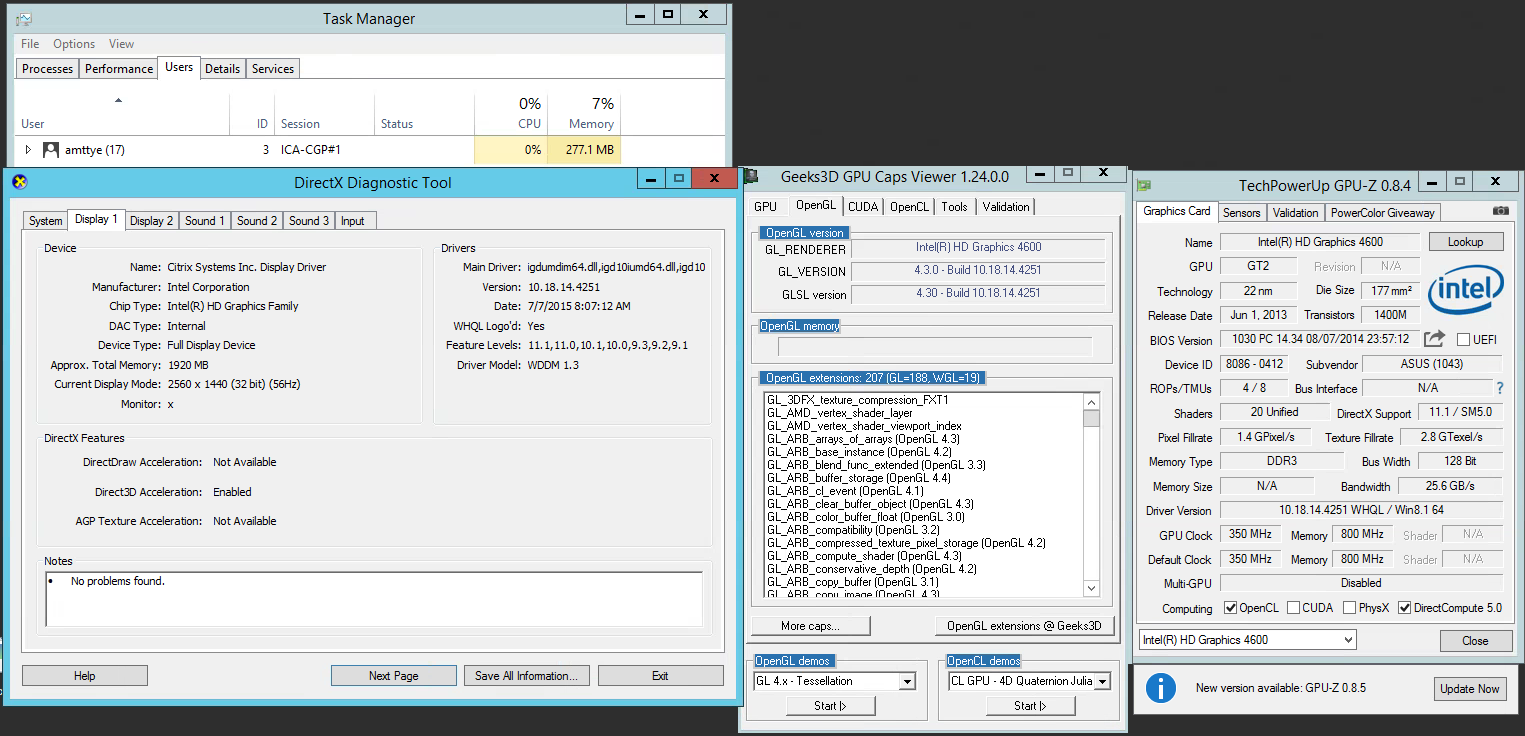
Launching an ICA session to the XenApp 7.6 server results in:


 We have OpenGL working, DirectX 11, and OpenCL (the onboard Intel GPU's do not support CUDA).  So we have a full, working implementation of GPU sharing in a ICA session on a XenApp server.

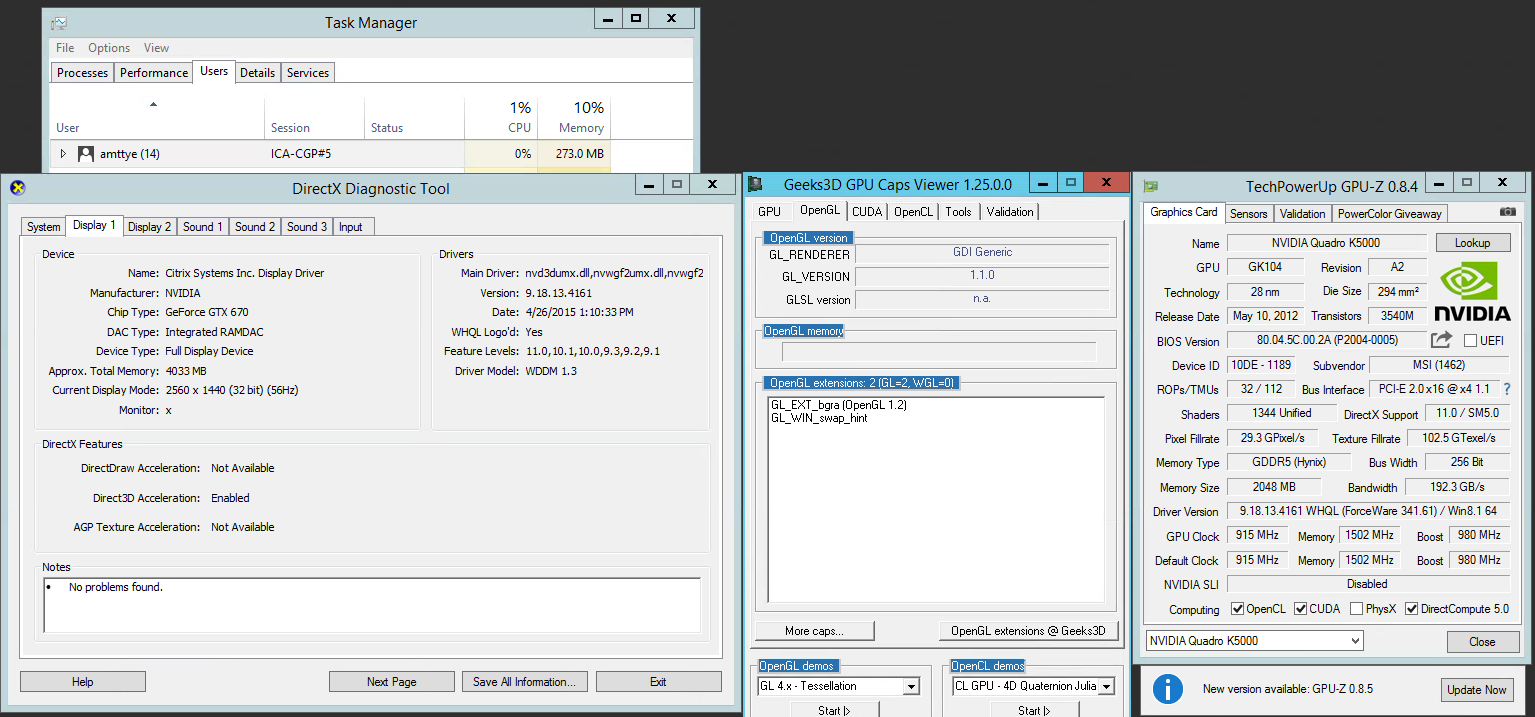
But the onboard Intel graphics card will not get the me the performance I want.  I had a Nvidia GTX 670 video card on hand to see if I can get better 3D performance.  I installed that card in the system, installed the video drivers and checked the results.


Where did my OpenGL go?  Everything else is working correctly; Direct3D, CUDA, OpenCL, but not OpenGL.  My understanding from Nvidia is that OpenGL should just be 'passed through' by Citrix.  I know that it *does* pass-through because we, literally, just saw it with the onboard Intel GPU and the Intel drivers.

My next thought is maybe it had to do with the drivers?  Maybe if I tried the Quadro drivers?  It turns out Nvidia has released special Quadro drivers that enable OpenGL in a RDP session. Maybe if I modified the INF to add my GTX670 to these special drivers I could get OpenGL to work?


It did not work.  OpenGL remained disabled in RDP/ICA sessions.

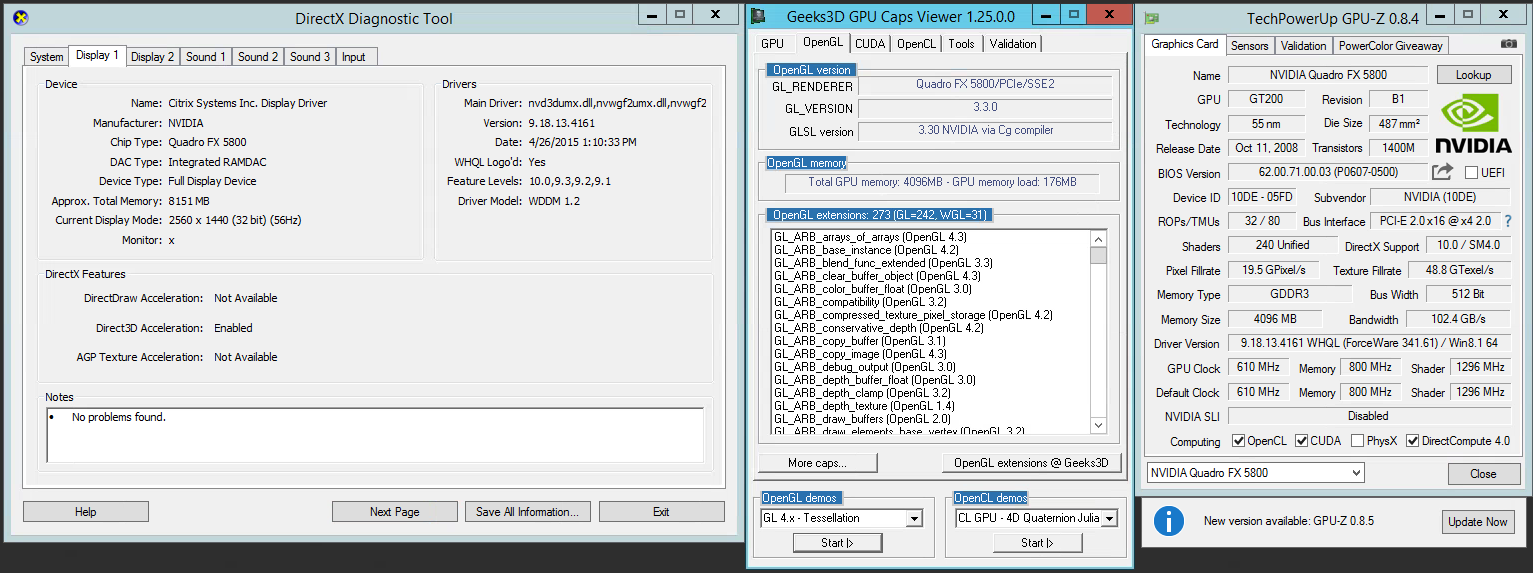
Suspecting Nvidia is doing some form of detection that is disabling OpenGL (it's probably considered a 'pro'-feature) I acquired a Quadro FX5800 and using the *same* modified Quadro drivers, these were my results:


OpenGL is now working!!

Ok, so, at this point I know how to enable GPU sharing for Citrix XenApp, I know how to check and verify it's functionality, and I know that different Nvidia cards can have OpenGL enabled or disabled but am not sure if it's the driver that matters or the hardware.  If it's the hardware I'm a bit surprised Intel would incorporate hardware accelerated OpenGL into ICA sessions for their consumer pieces but Nvidia would not for their discrete cards.  To *attempt* to test this I went and got the oldest driver I could find that would support a FX5800:


Sure enough, it works.

My last thought is maybe Nvidia has it hard coded somewhere to check for a string or a specific 'type' of video card and, if found, enable OpenGL?

My thinking is that the Nvidia drivers are doing some kind of detection and making a determination between a console session and all others.  If I'm lucky, maybe they only implemented this in their *newer* drivers, maybe after they started the RDS OpenGL acceleration...

To test this theory I went and grabbed the oldest driver I could find for my GTX 670 that would work on Windows 2012R2.  327.23.


Well now...  OpenGL is working.  This is interesting.  And leads evidence that OpenGL is being disabled in ICA via the driver.  I attempted to find when OpenGL *stopped* working.

331.82 --> Works, and now with OpenGL 4.4


337.88  -> Works


340.52 -> No OpenGL.  This driver (340.52) is now the first gaming driver *After* the "OpenGL on RDS release" (340.43).  It appears something on or after the 340.XX branch is disabling OpenGL in ICA sessions.


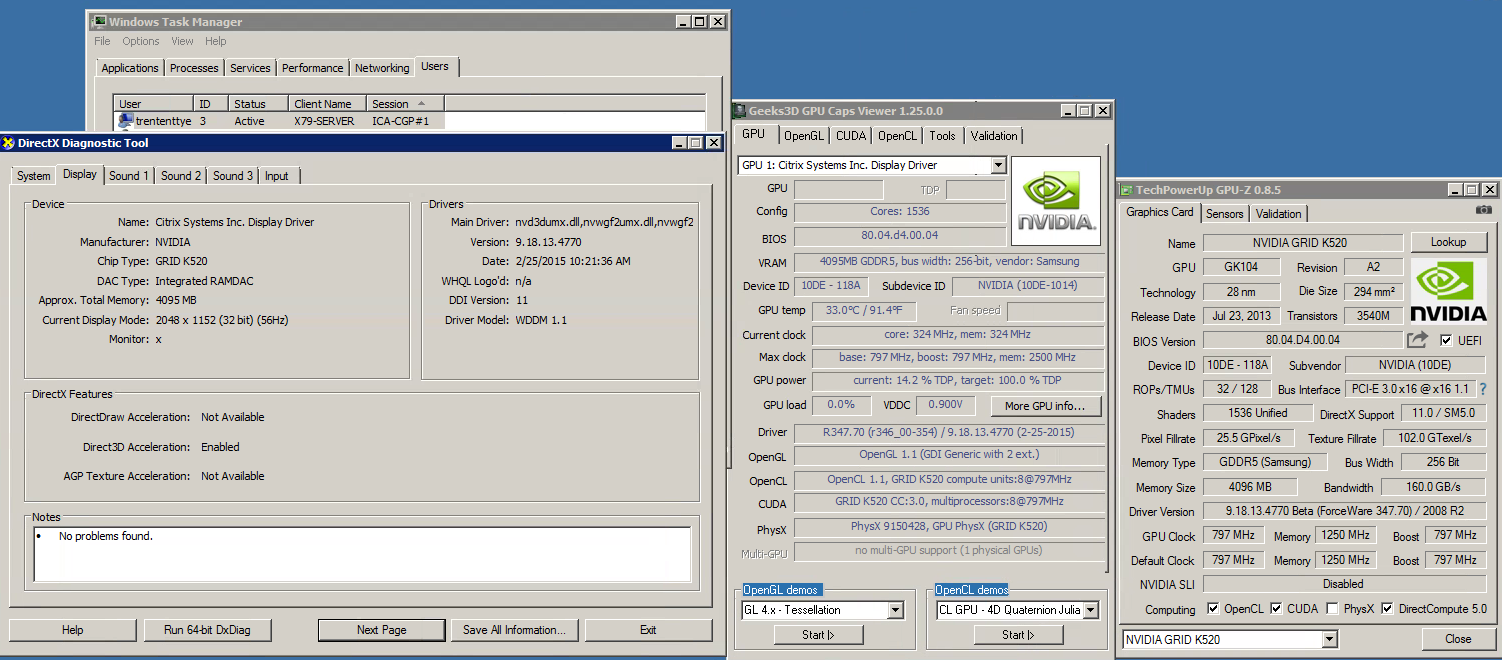
At the same time I was testing my Nvidia gaming GPU on my home lab, I was testing Amazon.  The GPU instance that Amazon provides utilize the Nvidia GRID K520 card as a vGPU.  This card is marketed as a 'GRID Gaming' card.  I setup this instance with Citrix XenApp and, at the time, used the latest driver (347.70).  At the time of this testing, this was my 3rd rebuild of this instance so I went with Server 2008 because my previous 2 builds were 2012 and I was convinced I was doing something wrong.  The OS shouldn't matter, but I'm noting it here.

347.70 --> No OpenGL (just like the gaming card):

Knowing that downgrading the gaming card's driver worked, I installed the oldest driver I could for the K520:

320.59 --> OpenGL Works!

Just like the gaming card.  I suspect the K520 will have the same issue as the GTX 670, and that any driver after 340.XX will disable OpenGL in a ICA session.  Unfortunately, the Grid K520 appears to only have 3 drivers to chose from, 320.59, 335.35, and 347.70.  To finish this testing I will test with 335.35:


OpenGL Works!  So it appears driver 340 and newer will disable OpenGL for ICA sessions across various types of Nvidia GPU's, but not Quadro's..

If you want OpenGL to work on Amazon EC2 instances, you must (at the time of this writing...  hopefully Nvidia corrects this over sight for all cards - consumer and not) you must use a driver older than 340.