We are still in a pilot-preupgrade phase of Citrix Director 7.7 and found an issue where we were getting artifacts with IE11. The artifacts manifested themselves like so:
This is wrong.
When the search box should look like this:
This is right.
This issue appears to be caused by a policy our organization uses to enable compatibility view for sites on the Local Intranet:
The Culprit
Citrix says the following about Director and 'Compatibility View':
Because we use a group policy to push this setting out, disabling it and re-enabling it on a site-per-site configuration isn't acceptable. There is an option to set the 'zone assignment' of our Citrix Director server to be on 'Trusted Sites' instead of 'Local Intranet' but this would be another policy that would have to be pushed out to the ~80,000 workstations we have. Instead, there is another option. We can edit the default.html file in the Citrix Director folder and add a line in the section to tell IE to exclude this site from compatibility mode. To execute this:
Edit the Default.html file ("C:\inetpub\wwwroot\Director\default.html") and add this line:
To the 'head' section. Example:
Add the line around here
Delete your cache and now your website will work without issue.
Citrix has 'replaced' Edgesight with a new tool called Citrix DesktopDirector. It's a monitoring tool that provides help desk or other type of technicians with data on what's going on in user sessions (when referring to XenApp). Although vastly inferior to ControlUp, it is free.
But it's not without poor documentation and its own tales of woe. We have Citrix DesktopDirector 2.1 currently live in our environment. Our environment is purely XenApp 6.5 (at the moment).
For version 2.1, logins are incredibly slow. Enumerating any sort of information on DesktopDirector is horribly slow. It's just incredi-bad.
Enter Citrix Director 7.6 7.7; lots of promises to overcome the failings of the previous version.
First, installing Citrix Director 7.7 for XenApp 6.5:
1) Launch the AutoRun (AutoSelect.exe) installation file
2)
Select ‘Start’ for XenApp
3)
Select ‘Citrix Director’
4)
Agree to the licensing agreement and click ‘Next’
5)
Select ‘Next’
6)
Without entering any information, select ‘Next’
7)
Select ‘Next’
8)
Select ‘Next’ for the firewall rules
9)
Select ‘Install’
10)
Wait for the install to complete
11)
Open IIS Manager on the Director Server. Select the Director site under Default Web Site and double-click on ‘Application Settings’
12)
Under ‘Actions’ click ‘Add'
13)
For ‘Name’ enter ‘Service.AutoDiscoveryAddressesXA’ and for value put the IP of the local ZDC server
14)
If you are not setting up certificates on the server for SSL, you can disable the SSL verification by changing the UI.EnableSslCheck to false.
15) Reset IIS from the command line.
16)
On EACH XenApp server, install the Director WMI Provider (DirectorWMIProvider_x64.msi for 64bit OS's and DirectorWMIProvider_x86.msi for 32bit OS's). No reboot is needed, it takes effect immediately.
17) Enable WinRM on each XenApp server. In a command prompt run:
'winrm qc'
18) Configure WinRM with the appropriate permissions:
ConfigRemoteMgmt.exe /configwinrmuser HEALTHY\DesktopDirector.TST /all
**A NOTE ABOUT CONFIGREMOTEMGMT.EXE**
Ensure you use the latest version you can find. For XenApp/XenDesktop 7.7 the version that comes with it is:
It has been revised as time has gone on and numerous bug fixes have been implemented. We implemented a script to update our WinRM so all of our XenApp servers would have the user configured. We didn't include checking, we just assumed if a group was added it would not be added again. With an older version of ConfigRemoteMgmt.exe this was an incorrect assumption and our WinRM SDDL became so large that the command line that ConfigRemoteMgmt.exe generates for winrm.cmd breaks the command line. You see, ConfigRemoteMgmt.exe is also a front end to "C:\Windows\system32\winrm.cmd". Here is the command it generates:
C:\Windows\system32\cmd.exe /c ""C:\Windows\system32\winrm.cmd" set winrm/config/service @{RootSDDL="O:NSG:BAD:P(A;;GA;;;S-1-5-21-38857442-2693285798-3636612711-99999999)(A;;GA;;;BA)S:P(AU;FA;GA;;;WD)(AU;SA;GXGW;;;WD)"}"
The part I bolded is the GUID of the object you pass in the /configwinrmuser. The ConfigRemoteMgmt.exe takes your object and converts it to a GUID and then sets the SDDL using the native Windows tools. The bug in a pervious version of this tool is that it would add another GUID, even if one already existed. So in the buggy version the next command would be this:
C:\Windows\system32\cmd.exe /c ""C:\Windows\system32\winrm.cmd" set winrm/config/service @{RootSDDL="O:NSG:BAD:P(A;;GA;;;S-1-5-21-38857442-2693285798-3636612711-99999999)(A;;GA;;;S-1-5-21-38857442-2693285798-3636612711-99999999)(A;;GA;;;BA)S:P(AU;FA;GA;;;WD)(AU;SA;GXGW;;;WD)"}"
And so on. Eventually, this causes WinRM to fail and it will just hang at this point:
To check your WinRM Root SDDL, execute this command:
"C:\Windows\system32\winrm.cmd" get winrm/config/service
If you have an output similar to this, then you have a problem:
Fortunately, it's a super easy fix. If you run the command with a single GUID it all gets reset:
C:\Windows\system32\cmd.exe /c ""C:\Windows\system32\winrm.cmd" set winrm/config/service @{RootSDDL="O:NSG:BAD:P(A;;GA;;;BA)S:P(AU;FA;GA;;;WD)(AU;SA;GXGW;;;WD)"}"
And now you can execute the ConfigRemoteMgmt.exe command again. The new version of ConfigRemoteMgmt.exe doesn't seem to just 'stack' the new version on top.
/**A NOTE ABOUT CONFIGREMOTEMGMT.EXE**
Now that you have WinRM configured, Director installed, you login and it works. So you try with a HelpDesk account and it fails:
In order to trouble shoot this, we need to turn logging on for Director. To do so, go into IIS Manager Console, to the 'Director' Site, and double click on Application Settings. Turn on the following "Log." settings:
Now, create the folder you specified the log will be captured in and set the following permissions on it:
Note: The permissions are %COMPUTERNAME%\IIS_USERS
Restart IIS and attempt to login again. You should get a log file generated with content. A failed login had this output:
And a succesful login had this output:
I highlighted the lines in the successful output that showed the command succeeding and the output from that. So why did this fail? The one account "adtest91" is setup as a 'help desk' style account and has 'custom permissions'; essentially 'View-only' but with some categories removed altogether. Could this be permissions based? The odd thing is DesktopDirector 2.1 works without issue with this exact same configuration.
Fortunately, Citrix tries to make this easy to troubleshoot. I will login to the ZDC and start a Citrix PowerShell session with "adtest91" and run the command it supposedly fails on:
Well, at least it appears consistent. So, apparently, we need to get this command working. My first try at troubleshooting was to login to the AppCenter console, go to Administrators and get properties on this account, and change it's 'Privileges' from Custom to Full:
When I attempted to login it worked! So it's definitely a permission issue. I went back to Powershell and executed the same command:
Success!
So if the Powershell command specified in the log file works then 'Director' should work, and so far that is what it looks like. Now I wanted to narrow down *which* permission does this as we do not want our Help Desk to have full control over the farm. The, very obvious, first thing that stood out was:
"Edit Zone Settings." We are having issues enumerating Zones, perhaps this setting enables you to *read* zones? I enabled this setting and retested:
Success! And our 'Help Desk' account can now login to Director.
We don't really want Help Desk to have the ability to 'Edit' Zones but I don't see a 'Read-only' permission so we may have to live with it.
So now we've logged into Director and we enumerate an account but we get this message:
Cannot retrieve the data. Cannot find the referenced object. View Director server event logs for further information.
The IIS logging shows:
Citrix.Dmc.Common.NotFoundException: Exception of type 'Citrix.Dmc.Common.NotFoundException' was thrown.
at Citrix.Dmc.Connector.WinRMConnector.WinRMWqlQueryExecute(String query, String wqlUri)
at Citrix.Dmc.Connector.WinRMQueryThrottle.ExecuteQuery(String query, String wqlUri, Int32 timeout, Nullable`1 refreshTimeoutInSec, WinRMQueryInvoker invoker)
at Citrix.Dmc.Connector.WinRMConnector.WinRMWqlQuery(String query, String wqlUri, Nullable`1 refreshIntervalInSec)
at Citrix.Dmc.Connector.WinRMConnector.WinRMWqlQuery(String query, String wqlUri)
at Citrix.Dmc.Common.ConnectorWrapper`1.Invoke[TReturn](Func`2 method)
--- End of inner exception stack trace ---
at Citrix.Dmc.Common.ConnectorWrapper`1.Invoke[TReturn](Func`2 method)
at Citrix.Dmc.WebService.Wmi.WinRMConnectorQuery.ExecuteSelectQuery(String resourceUri, String className, String[] attributes, String whereClause, Nullable`1 timeoutInSec)
at Citrix.Dmc.WebService.Wmi.VDAMachineDao.ExecuteSelectQuery(String resourceUri, String className, String[] attributes, String whereClause, Nullable`1 timeoutInSec)
at Citrix.Dmc.WebService.Wmi.VDAMachineDao.GetRunningApplicationsData(String sessionId)
at Citrix.Dmc.WebService.XAConsoleDao.GetRunningApplicationsData(String farmId, String machineId, String sessionId, Boolean detailed)
at Citrix.Dmc.WebService.ConsoleService.GetRunningIMAApplicationsData(String farmId, String machineId, String sessionId, Boolean detailed)
01/14/2016 08:42:30.5628 : [t:9, s:tnccy45w1lfhxwkzaq0m0geh] Fault mapper Convert method called
01/14/2016 08:42:30.5628 : [t:9, s:tnccy45w1lfhxwkzaq0m0geh] Service exception is mapped to fault error code 104
01/14/2016 08:42:30.5628 : [t:9, s:tnccy45w1lfhxwkzaq0m0geh] Fault mapper Convert method returning
01/14/2016 08:42:30.5784 : [t:9, s:tnccy45w1lfhxwkzaq0m0geh] DmcWebErrorHandler channel level error
System.ServiceModel.FaultException`1[Citrix.Dmc.WebService.DmcServiceFault]: The creator of this fault did not specify a Reason. (Fault Detail is equal to Citrix.Dmc.WebService.DmcServiceFault).
]]>
-->
And the event log shows:
The requested data could not be found in the data 'The virtual desktop via WinRM service reported an exception. See the event log for more information.' ('http://WSCTXZDC301T.healthy.bewell.ca:5985/wsman').
User: 'HEALTHY\adtest91' Console operation: 'Retrieving running application details for IMA Session…' Additional information: 'Exception of type 'Citrix.Dmc.Common.NotFoundException' was thrown.'
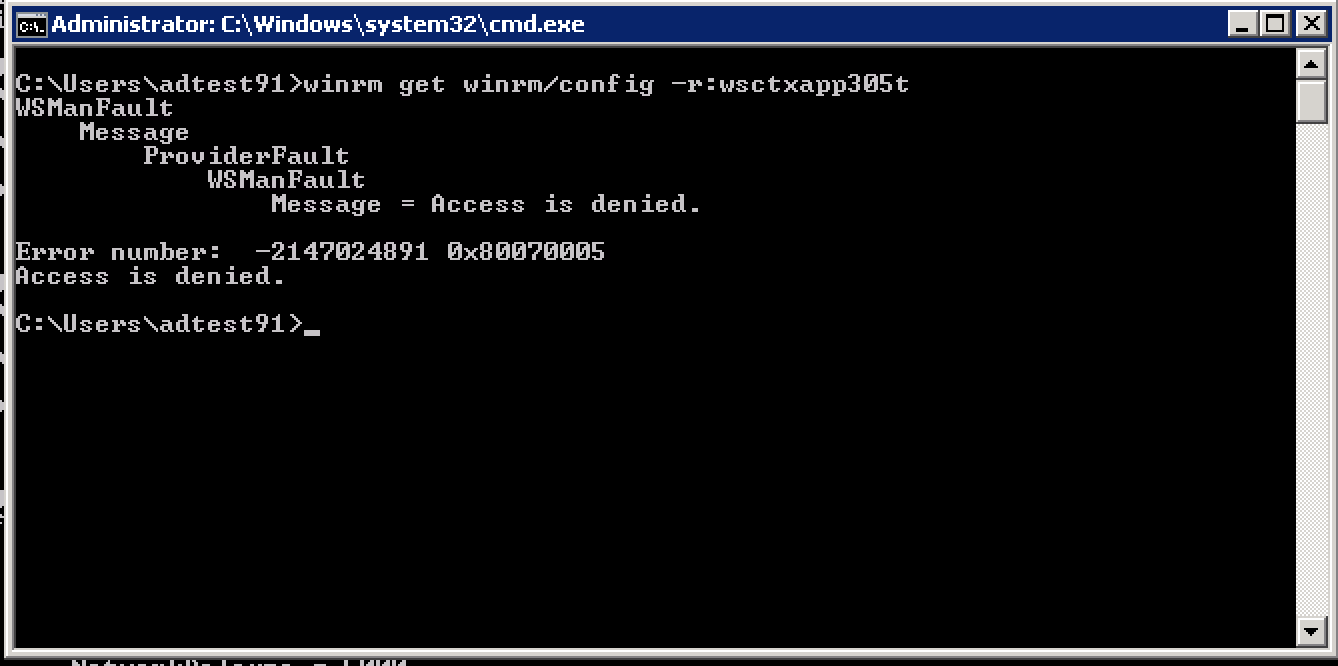
When I got this message with my 'Administrator' account I installed the Director WMI Provider and it started working. But with this 'limited' user account I was getting an this error. Amazingly, this error goes away as soon as a user logs in to Citrix Director webpage, who would also be a local administrator on the Director server. After searching and searching and troubleshooting and scanning and trying various things to get this working, the only thing that would work was to grant our Director group admin privileges on the Director web server. I finally stumbled across another article that reaffirmed that the only solution is to have the users be local admins on the web server.
winrm get winrm/config -r:%server% -- Non-administrator user gets access is denied making WinRM queries
This error, though, is only if you set Connector.WinRM.Identity as 'User' and those users are not Administrators. The fix, is to put your users into a group and make them a local admin on the Director server.
We have an application (Meditech) that users have reported as performing poorly in Citrix. They were able to confirm the poor performance by comparing it to a desktop that had the same software installed. I was brought on to try and understand these performance differences and why Citrix would be performing so much worse. To measure the performance, the user took me to a screen where they held down a key on the keyboard to increment a counter in the software. When holding the key down on the desktop the counter was quick and incremented at a steady pace, on Citrix it seemed OK at first but then slowed as time went on. To illustrate these performance differences, I made a video:
So we definitely have a problem. My first steps on troubleshooting this problem was to compare the differences between the desktop and the VM. The VM had server processors but they were older, and at less GHz at 2.6GHz for the server. The desktop had 3.4GHz processors with a newer generation. If the processing is NOT latent sensitive then the faster processor's can make a difference, and the CPUMark had them at 1500 and 2100 (~40% difference). At first glance, this seems like it could be the difference in our timings but it's still too drastic at ~5s vs ~20s, a 400% difference. To try and narrow the difference I took the application to a completely bare server with no software on it what-so-ever and reran the test. It completed in about ~5-6s. The processor it ran on was comparable to the original server processor but ran at 2.7GHz instead. The processor was not running at nearly enough speed to make up the difference, something else must be consuming those cycles.
At this point I procmon'ed the benchmark and came up with the following:
(PID 6660 is the process that the benchmark runs against)
Very obviously, the pattern of each key stroke on the Citrix server is present with the initial pattern highlighted:
About 400ms from each key stroke to when the next one is registered. So what is delaying the 400ms? From my experience, unexplained delays are CPU related. I then looked at the process activity summary to see if I can find the bottleneck:
Again, very obviously we are seeing the CPU ramp up, and it can also explain the faster, initial iterations of the GUI as the CPU 'ramps' up and doesn't spike to the it's maximum. None of the other graphs show any activity at the time of the benchmark so the suspect is highly on the CPU. When hovering over the graph we see the CPU percentage.
This is a 4 core box, so ~25% equals one full core for a single threaded application. Again, this points to the application being bottlenecked by the processor, but again, the difference is too large to consider just the CPU at this point. We need to find what part of the process is consuming these resources. Fortunately, ProcExp (process explorer) can help us determine what is going on within a process.
I started a new run and got properties of the process:
MGUI.DLL is consuming all of the CPU. That is a DLL utilized by the application, clicking on 'Stack' gives us the hierarchy of commands being utilized by that thread.
From this, I can understand that ntoskrnl.exe, ntdll.dll are native Microsoft Windows functions, MGUI.DLL is utilized by Meditech, but what is ISXHook.dll?
Doing a search within the process shows that it's utilized by Imprivata, a single sign-on solution we utilize to try and increase user efficiency. It works by 'screen scraping' to determine fields that it needs to populate with user credentials to try and speed up user logins. Logically, this sounds like it could be causing the delay by screen scraping every time a key is stroked or a change is registered. To confirm this, we need to remove Imprivata from the application. Fortunately, it's hooked in by services that can easily be terminated.
I'm going to terminate everything that says 'Imprivata Inc.'
With the processes terminated I reran my test. Using Process Explorer and getting properties on the process, immediately CPU usage went from 25% down to 15% at a peak:
And getting Stack information showed a much cleaner stack:
In conclusion, I may need to investigate into Imprivata to determine if I can reduce its polling rate or find some way of allowing it to 'stop' polling the CSMagic process *after* the accelerated login. Its current settings (which I'm not familiar with, sadly) is not acceptable and causes a significant slow down. Fortunately, the root cause has been determined and we can work towards a full resolution.
AppV has a few weaknesses, one of them is Com+ Objects. It doesn't like Com+ Objects and sequencing an application with them generally results in this error message:
The Resolution seem easy enough:
1) Try extracting and installing the COM+ component natively on both sequencing station and the client
2) Thoroughly test your virtual application package to verify functionality.
But how do you extract the COM+ components?
1) Open 'Component Services'
2) Expand until you find your Com+ Applications, right-click and select 'Export'
3) Click 'Next'
4) Enter a path to save your MSI then click 'Next'
5) Click 'Finish'
Since this application had two Com+ Applications I exported my second one as well:
To ensure they work, I took them to our XenApp Test server and installed them.
Both *appeared* to have installed correctly. But this application requires the Com+ Application to run under a service account. Checking the original install:
I can see under the 'Identity' tab that it is configured for 'This user:'. I then checked the MSI install on the XenApp Test server and looked at the Identity tab:
It appears it defaults to 'System Account' even though I selected 'Export user identities with roles'. To change the user account silently, I used this script supplied by the vendor (as a encrypted vbe):
This script changes the user account on the Com+ applications to use the proper account. When browsing the properties of the components of the SFSQL object I saw it referenced the dll to it:
Fortunately, it seems these files are captured by the MSI export of the Com+ Application.
To test everything now, I must now create my AppV package. Before doing the install I installed my prerequisites (the Com+ Applications) into the Sequencer so they are not captured by the package.
I selected a batch file I created for the install (per the vendor's initial instructions):
Once the install completed I saved my package and took it to my XenApp Test server and published the application and ran it.
No, this is not correct
For some reason my application was failing. I double checked the COM+ Applications are installed and appear to be working, so I opened Procmon.exe to see if I can find where it's going wrong:
I've used procmon enough now to practically pull the old' Matrix, "blonde, brunette, red head". Working from bottom to top, the message box is generated from the 'Text' (LanguagePack) back to the KernelBase.dll. So we can exclude that has the cause, this is telling us *of* the issue. So if we look at the lines preceding it, one of them must be causing our message.
Looking at the first keys, the OLE keys, I can compare them to my sequencer and they match exactly, so the likelihood of them causing our issues is none.
So we go back a little further to the AppID key and jumping to the *SUCCESS* location to look at it's value...
I am on a server called WSCTXAPP301T but the registry key for this value is pointing to the system I did my sequencing on. I changed the value to the actual server name and did a registry search for "WSAPVSEQ07" to see if it appeared anywhere else. It did in one other location so I modified the value there as well to point to the local server:
And tested my application again:
Success! The login screen. This is as far as I can take this app until I get credentials or a user to login and try testing for me. So, for now, I can create a preflight-script to setup some prerequisites when the application is published. I modified my preflight script to include the two registry values being updated:
Then I updated the Deployment_Config.xml file for this application:
Lastly, I logged onto a new, fresh, system and manually tested my XML file by publishing from the command line:
Using Procmon to monitor to ensure the prerequisites get installed:
"Exit Status: 0" --> Usually a good thing :)
Testing the application:
Looks good
Then testing removal and monitoring with Procmon:
Com+ Application are removed cleanly :)
So everything looks good and I can now add this application to our AppV Management Server and deploy it to the machines that need it.