Friday, September 04, 2015

Change Citrix HDX Encoder on the fly for testing

Rachel Berry posted an article on optimizing HDX for gaming.  In this article she highlighted that Citrix has some 'special' registry keys for modifying different parameters of the Thinwire encoder.  One of these keys was changing the encoder itself:

  • Encoder = 2 is Pure H.264 (YUV 4:2:0). As with most vendors this is H.264 4:2:0 format, it’s designed for a balance of quality and bandwidth primarily on video and high-bandwidth CAD parts (not much text). This is used by the HDX 3D Pro VDA.
  • Encoder = 1 is H.264+lossless text. This is used by default by the XenDesktop standard VDA and XenApp VDA. 
  • Encoder = 0 forces you to use Compatibility mode 
In terms used by HDX, it shakes out like so:

Encoder 2 = DeepCompressionEncoder
Encoder 1 = DeepCompressionV2Encoder
Encoder 0 = CompatibilityEncoder

The cool thing about these encoders is you can modify their values *on the fly* and it will take place immediately in your Citrix session. This video I made demonstrates this. I ran a 3D benchmark application and modified the encoder's on the fly. I zoomed into the FPS counter and put this in the bottom left corner as the text with moving images shows much better the difference in the encoders.  Without a doubt, the CompatibilityEncoder has the worst quality of all the encoders when it comes to video/moving images/3D/gaming.

Try to watch it in 1080p for maximum quality.


To change the encoder, you need to add/modify a registry key at HKLM\Software\Citrix\Graphics.  The type is DWORD32 named "Encoder" and the value is 0x0 to 0x2, depending on the encoder you want to try and use.

All testing was done with XenApp 7.6 on my home built lab.

Tuesday, September 01, 2015

Citrix XenApp, OpenGL pass-through and Nvidia GRID cards on Amazon EC2 (G2 Instances)

I'm attempting to do a Proof of Concept (POC) for a client and one of the ideas was to utilize the Amazon EC2 cloud to provide GPU instances to the users for their applications (Maya, SolidWorks, etc.).  In order to understand how GPU sharing works, I setup my home lab to take advantage of these features first, in order to understand how it operates.

Citrix provides documentation on setting up the GPU sharing.  For my test, I'm doing this on a bare metal Citrix server.  Essentially, the notes state that OpenGL is automatically shared and enabled and special steps must be taken for DirectX, OpenCL, CUDA and Windows Server 2012.  To enable GPU sharing for XenApp for these features, the following registry file will enable these:

Windows Registry Editor Version 5.00
[HKEY_LOCAL_MACHINE\SOFTWARE\Citrix\CtxHook\AppInit_Dlls\Graphics Helper]
"DirectX"=dword:00000001
[HKEY_LOCAL_MACHINE\SOFTWARE\Wow6432Node\Citrix\CtxHook\AppInit_Dlls\Graphics Helper]
"DirectX"=dword:00000001
[HKEY_LOCAL_MACHINE\SOFTWARE\Citrix\CtxHook\AppInit_Dlls\Multiple Monitor Hook]
"EnableWPFHook"=dword:00000001
[HKEY_LOCAL_MACHINE\SOFTWARE\Wow6432Node\Citrix\CtxHook\AppInit_Dlls\Multiple Monitor Hook]
"EnableWPFHook"=dword:00000001
[HKEY_LOCAL_MACHINE\SOFTWARE\Citrix\CtxHook\AppInit_Dlls\Graphics Helper]
"CUDA"=dword:00000001
[HKEY_LOCAL_MACHINE\SOFTWARE\Wow6432Node\Citrix\CtxHook\AppInit_Dlls\Graphics Helper]
"CUDA"=dword:00000001
[HKEY_LOCAL_MACHINE\SOFTWARE\Citrix\CtxHook\AppInit_Dlls\Graphics Helper]
"OpenCL"=dword:00000001
[HKEY_LOCAL_MACHINE\SOFTWARE\Wow6432Node\Citrix\CtxHook\AppInit_Dlls\Graphics Helper]
"OpenCL"=dword:00000001
In addition to this registry file, for Server 2012, the following Group Policy object is required:

  • On Windows Server 2012, Remote Desktop Services (RDS) sessions on the RD Session Host server use the Microsoft Basic Render Driver as the default adapter. To use the GPU in RDS sessions on Windows Server 2012, enable the Use the hardware default graphics adapter for all Remote Desktop Services sessions setting in the group policy Local Computer Policy > Computer Configuration > Administrative Templates > Windows Components > Remote Desktop Services > Remote Desktop Session Host > Remote Session Environment.
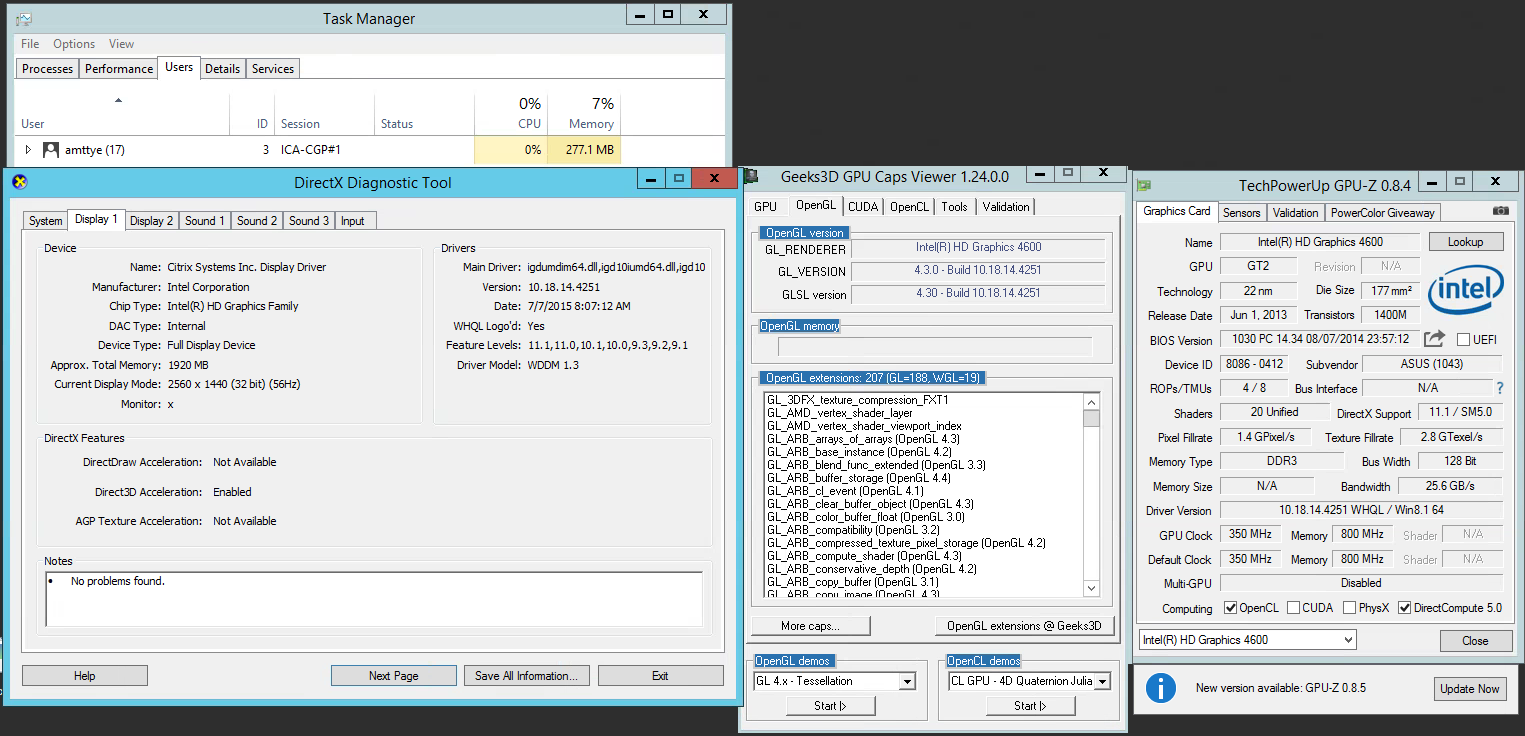
My initial setup is a Q87M-E system with a Intel 4771 and onboard graphics.  My system is setup with Windows 2012 R2 with Citrix XenApp 7.6.

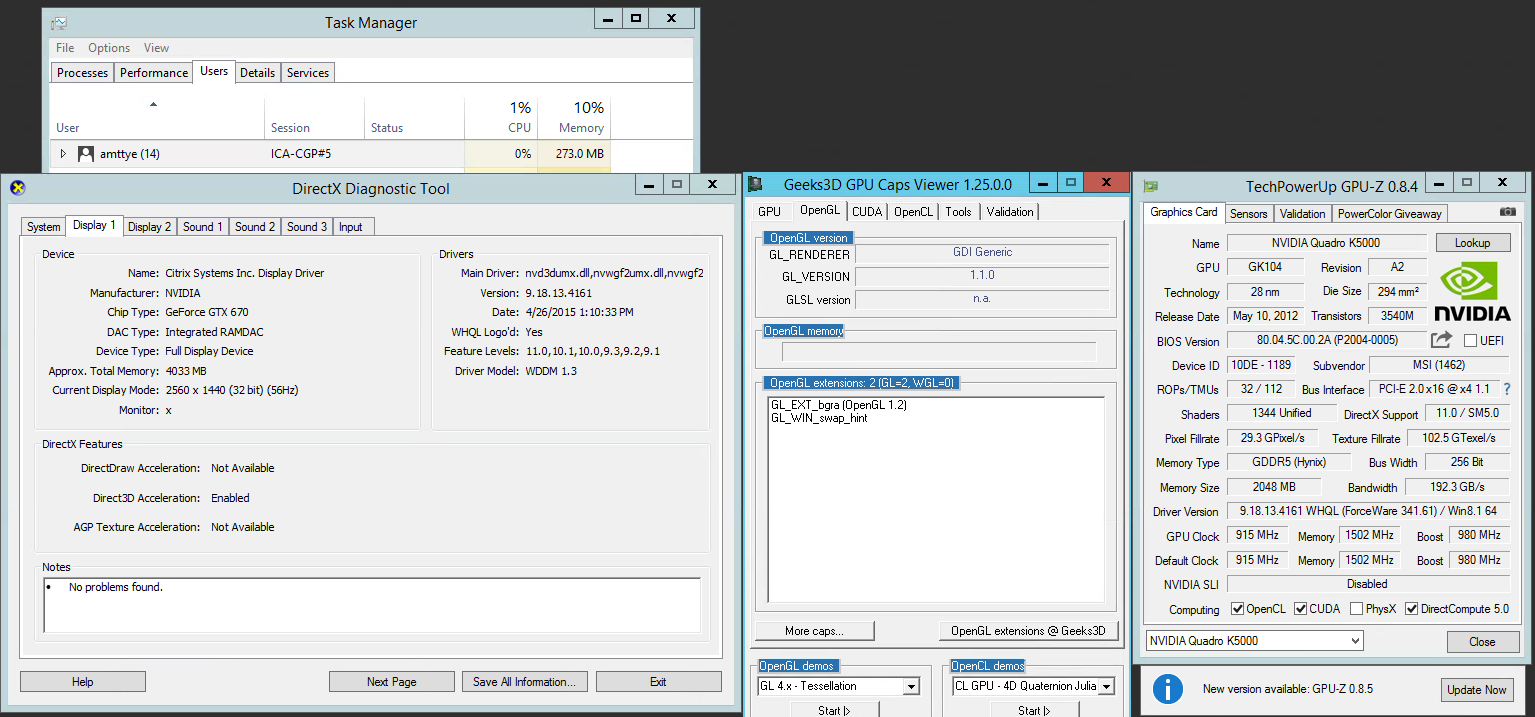
Launching an ICA session to the XenApp 7.6 server results in:


 We have OpenGL working, DirectX 11, and OpenCL (the onboard Intel GPU's do not support CUDA).  So we have a full, working implementation of GPU sharing in a ICA session on a XenApp server.

But the onboard Intel graphics card will not get the me the performance I want.  I had a Nvidia GTX 670 video card on hand to see if I can get better 3D performance.  I installed that card in the system, installed the video drivers and checked the results.


Where did my OpenGL go?  Everything else is working correctly; Direct3D, CUDA, OpenCL, but not OpenGL.  My understanding from Nvidia is that OpenGL should just be 'passed through' by Citrix.  I know that it *does* pass-through because we, literally, just saw it with the onboard Intel GPU and the Intel drivers.

My next thought is maybe it had to do with the drivers?  Maybe if I tried the Quadro drivers?  It turns out Nvidia has released special Quadro drivers that enable OpenGL in a RDP session. Maybe if I modified the INF to add my GTX670 to these special drivers I could get OpenGL to work?


It did not work.  OpenGL remained disabled in RDP/ICA sessions.

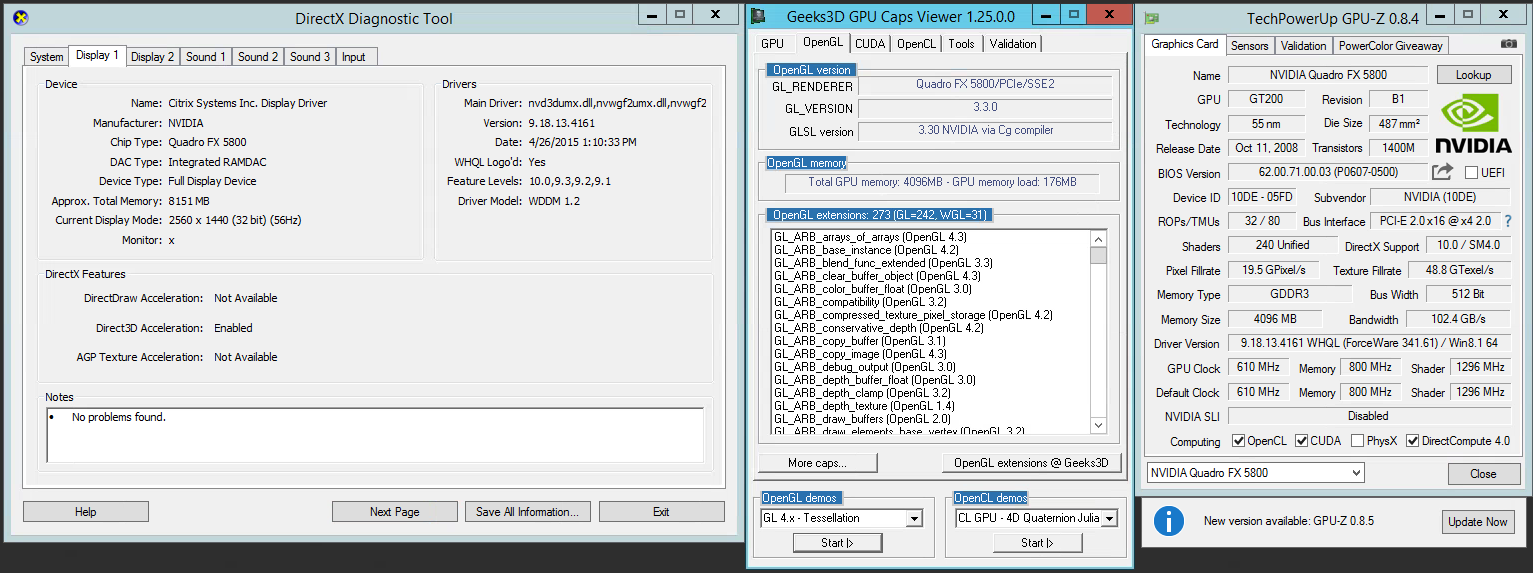
Suspecting Nvidia is doing some form of detection that is disabling OpenGL (it's probably considered a 'pro'-feature) I acquired a Quadro FX5800 and using the *same* modified Quadro drivers, these were my results:


OpenGL is now working!!

Ok, so, at this point I know how to enable GPU sharing for Citrix XenApp, I know how to check and verify it's functionality, and I know that different Nvidia cards can have OpenGL enabled or disabled but am not sure if it's the driver that matters or the hardware.  If it's the hardware I'm a bit surprised Intel would incorporate hardware accelerated OpenGL into ICA sessions for their consumer pieces but Nvidia would not for their discrete cards.  To *attempt* to test this I went and got the oldest driver I could find that would support a FX5800:


Sure enough, it works.

My last thought is maybe Nvidia has it hard coded somewhere to check for a string or a specific 'type' of video card and, if found, enable OpenGL?

My thinking is that the Nvidia drivers are doing some kind of detection and making a determination between a console session and all others.  If I'm lucky, maybe they only implemented this in their *newer* drivers, maybe after they started the RDS OpenGL acceleration...

To test this theory I went and grabbed the oldest driver I could find for my GTX 670 that would work on Windows 2012R2.  327.23.


Well now...  OpenGL is working.  This is interesting.  And leads evidence that OpenGL is being disabled in ICA via the driver.  I attempted to find when OpenGL *stopped* working.

331.82 --> Works, and now with OpenGL 4.4


337.88  -> Works


340.52 -> No OpenGL.  This driver (340.52) is now the first gaming driver *After* the "OpenGL on RDS release" (340.43).  It appears something on or after the 340.XX branch is disabling OpenGL in ICA sessions.


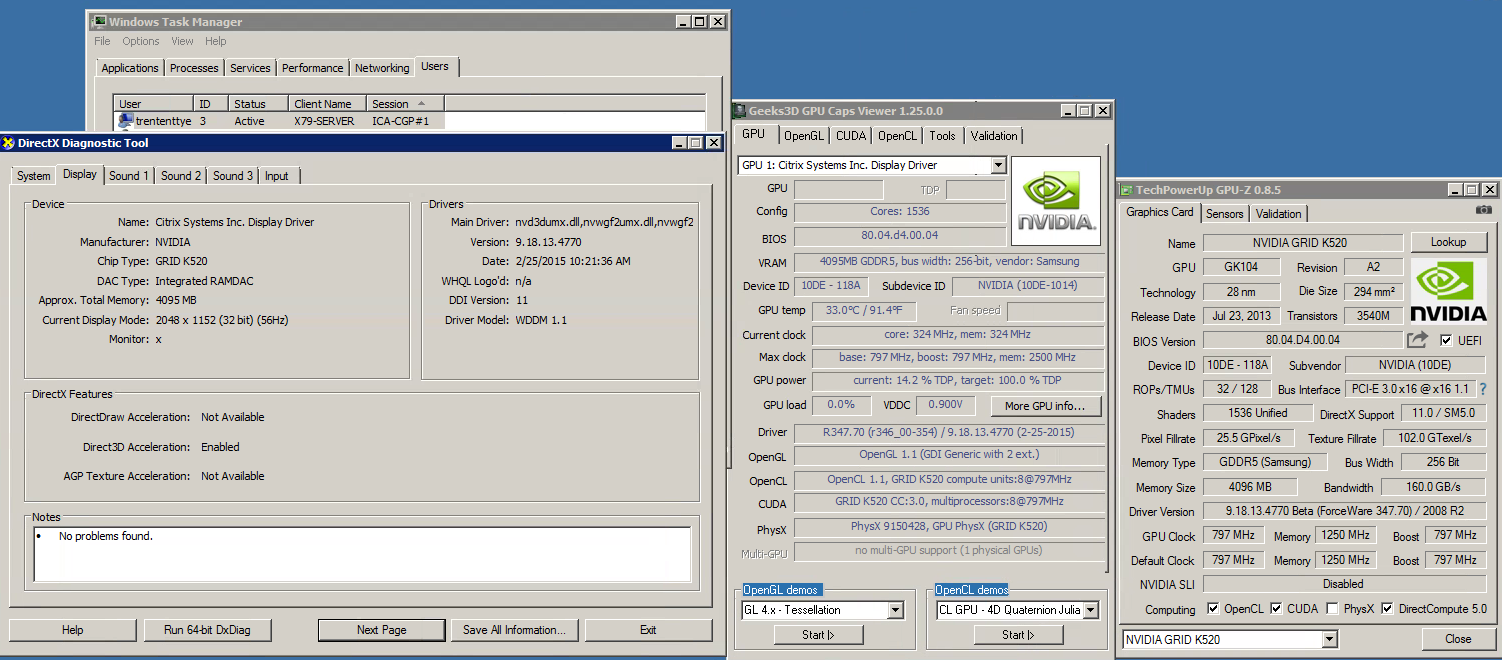
At the same time I was testing my Nvidia gaming GPU on my home lab, I was testing Amazon.  The GPU instance that Amazon provides utilize the Nvidia GRID K520 card as a vGPU.  This card is marketed as a 'GRID Gaming' card.  I setup this instance with Citrix XenApp and, at the time, used the latest driver (347.70).  At the time of this testing, this was my 3rd rebuild of this instance so I went with Server 2008 because my previous 2 builds were 2012 and I was convinced I was doing something wrong.  The OS shouldn't matter, but I'm noting it here.

347.70 --> No OpenGL (just like the gaming card):

Knowing that downgrading the gaming card's driver worked, I installed the oldest driver I could for the K520:

320.59 --> OpenGL Works!

Just like the gaming card.  I suspect the K520 will have the same issue as the GTX 670, and that any driver after 340.XX will disable OpenGL in a ICA session.  Unfortunately, the Grid K520 appears to only have 3 drivers to chose from, 320.59, 335.35, and 347.70.  To finish this testing I will test with 335.35:


OpenGL Works!  So it appears driver 340 and newer will disable OpenGL for ICA sessions across various types of Nvidia GPU's, but not Quadro's..

If you want OpenGL to work on Amazon EC2 instances, you must (at the time of this writing...  hopefully Nvidia corrects this over sight for all cards - consumer and not) you must use a driver older than 340.


Thursday, July 23, 2015

Citrix Seamless Flags and their impact

While investigating a performance issue with an application in our Citrix farm a curiosity was discovered when someone opened up Process Explorer and found the CPU utilization on the server was much higher than expected or reported by various monitoring tools we use.


Examining what was utilizing the CPU we found the process 'winlogon.exe' was consuming nearly the entire difference between Process Explorer and Task Manager.


Process Explorer allows us to dive 'deeper' into the process to determine the thread that is utilizing our CPU.


twi3.dll is a Citrix file.  Click 'Module' and getting properties gives us more information about the file and its purpose.


"Seamless 2.0 Host Agent - main component"


 Now that we have an idea of the purpose of twi3.dll is, we can being to test why it's consuming so much CPU.  Citrix has options for modifying the behaviour of twi3.dll via "Seamless Flags".

For our environment we had the following set:


I experimented with modifying each value to determine what the impact on the CPU on the twi3.dll threads would experience.

To that end, you can modify these values immediately and they take effect on the next session connect (but does not impact existing sessions).  With that, here were my results:


Lower numbers for CPU% are better and per user.  More CPU's actually lower the maximum % winlogon.exe can consume, for this test it was done with a 6 core CPU.  Less CPU's and the maximum % increases..  I imagine this is due to a thread limit or some such?  

The values that had the most impact on CPU utilization were the lowest values for the WorkerWaitInterval or WorkerFullCheckInterval followed by Disable Active Accessibility Hook.


So what does WorkerWaitInterval / WorkerFullCheckInterval do?

WORKER WAIT INTERVAL / WORKER FULL CHECK INTERVAL
Explanation: This update addresses a custom application's performance when run seamlessly. Some applications appeared to be slower to respond when performing actions such as moving, resizing, or closing windows. This fix introduces two new registry settings that allow administrators to configure an explicit time interval for the seamless engine mechanism to monitor when changes take place in the seamless applications.

For both values, a larger size slows responsiveness but improves scalability; a smaller size increases responsiveness but decreases scalability slightly. The level of scalability depends on several factors, such as hardware sizing, types of applications, network performance, and number of users. 

HKEY_LOCAL_MACHINE\SYSTEM\CurrentControlSet\Control\Citrix\wfshell\TWI Value Name: WorkerWaitInterval
Type: REG_DWORD
Value: 0
Value: (Values are between 5 – 500; the default is 50.)

HKEY_LOCAL_MACHINE\SYSTEM\CurrentControlSet\Control\Citrix\wfshell\TWI Value Name: WorkerFullCheckInterval
Type: REG_DWORD
Value: (Values are between 50 – 5000; the default is 500.)


For the graph above, the WorkerWaitInterval and WorkerFullCheckInterval defined in milliseconds, when they are a low value, forces the seamless engine to monitor for changes at a higher pace.  This consumes additional CPU cycles.  

For our environment we encountered issues as user count increased.  It turns out, as each user logged on they consumed a fairly constant amount of CPU.  The winlogon.exe process for the server in the screenshot averaged around 0.8% CPU per user, with 35 users that's 28% of the CPU no longer available.  So why does Task Manager not display these values?  The author of Process Explorer has the answer:


The configured time range we configured were 5ms so the threads executing have a good chance being before or after the timer tick of 15.6ms.

So this poses a question of what *should* the values be?  Citrix Adaptive Display technology has a maximum frame rate of 30 for XenApp 6.5 and a maximum of 60 for XenApp 7+.  Potentially, I think to achieve these frame rates a value of 16 for XA7 or 33 for XA65 could be set.  If the FPS is set to a lower maximum, it would probably make more sense to do the math for that maximum FPS?

Further testing may be needed here.

Lastly, if you do not use Seamless Flags, e.g., if you use Shift F1 to switch to Window'ed Mode then Winlogon.exe will use no CPU for twi3.dll.  You also get the same results with RDP, no CPU being used.

Friday, July 10, 2015

AppV5 - Virtualizing and running Local Services stand-alone

AppV5 allows you to virtualize Services that run under the LocalService account.  The issue I've seen with this approach is AppV5 will load the service for a user upon environment launch (which is good for VDI / desktop deployments) and the service will terminate upon that AppV environment exiting.  For remote desktop / Citrix XenApp deployments, this can be a big bother.  If the service is required for running the application the standard answer is to extract it and install it using DeploymentConfig.xml or some other on application publish.

But what if you have a service that is NOT required to run an application, just needs to run in the background, AND can run as the LocalService?  This service would be prime for being virtualized!

Do I have an example of such an application?  Why yes I do.

Epic SystemPulse is an application that captures performance information and uploads it to a DB.  It only runs under a LocalService account.

Using my Citrix PVS Sequencer, here is how I sequenced it:


These next screenshots illustrate the simplicity of this application:

Virtual Registry Hive For Epic SystemPulse

All files required for Epic SystemPulse

Lastly, the single service we need running

Now, the problem.

I am running this service on a RDS/XenApp server.  This service needs to run while an application, Epic Hyperspace, is running.  My first thought was the use a connection group so that whenever Hyperspace is launched, SystemPulse will launch with it.

This, initially, worked.  The first user who launched HyperSpace also had SystemPulse running at the same time.  Subsequent user whom launched HyperSpace, had their SystemPulse service start and terminate, with the first service continuing to run.  It looked like a success!

Second user launches app, SystemPulse (EpicSvcMaster.exe & EpicSvcHost.exe) starts and terminates, the original processes still running.

Eventually, that first user logged off.  And the SystemPulse processes exited with it.

I thought being SYSTEM processes they were started in some way that a 'SYSTEM' process wouldn't terminate willy-nilly.  This is not the case.  A quick test of 'get-appvclientpackage' shows the package as 'In Use', signifying that AppV5 is tracking the processes.  The users logging off will turn that 'True' into a 'False'.


Now, we had to wait until the next user started the application to have the service start back up.  This was an unacceptable solution.

But we know that this AppV5 package will work as a service.  We can reap all the benefits of AppV; we can deploy this package on a whim, it's not a local/permanent install, it works!  So now the question becomes how can we keep these advantages and what are the drawbacks?

The first drawback I encountered was 'how do I open a AppV Virtual Environment (appvve) so this service will start?'

I tried several things.

I created a script/scheduled task that would check to see if the process was running and if not, open a appvve.  This failed.  I tried this using the LOCAL SERVICE to start my script to open my environment and it would not.  I tried using the SYSTEM account and it failed.  It turns out you can't use either of these accounts to open a appvve.

With this failing, I moved to another method.  AppV has the ability to start a script upon application publishing, could I use this to start my service when the application is published?  It turns out that the account that runs when this context is started is the SYSTEM account, and it failed same as the scheduled task.

At this point I figured my problem is the account I'm trying to open the appvve with.  I need to launch it with a service account.  My first attempt I made a script with a hard-coded username/password string with PSEXEC.exe to open my appvve.  I put this script in deploymentconfig.xml.

And it worked!  It opened my appvve environment, the services started, and everything looked great! The only issue I had now is the hard-coded username/password combo.  There is no way having that would be acceptable in a plain text file.

So I created a exe with AutoIt, 'RunAsWait.exe'.


It may not be the most secure thing when compiled, but internally it's good enough...

With this I set my deploymentconfig.xml with the program and arguments I was looking for:


The CMD file looked like so:


With this, my service will start upon application publish.

I set it to launch a exe that gets installed with the package (SystemPulseConfigEditor.exe) as I needed a unique name I could key in on to determine if the package started successfully.  This has a drawback though, the exe I chose has a GUI and I launch the process with -WindowStyle Hidden; if the service crashes, this EXE prompts for attention.  When RDP'ed into a server this notice comes up as "Interactive Service" something-or-other and clicking on it brings this exe visible.  I have considered making a AutoIT app that has no GUI and just sits in the background doing nothing, but time has not permitted me this yet.  Sometimes the SystemPulse service will crash so I added the /RESTART to this batch file to get it to kick off.  By removing the package then 'rsync'ing with the publishing server we trigger PublishPackage script which launches the service.

Thursday, July 09, 2015

Citirx Universal Print Server - More Zebra label printer troubleshooting tips

Continuing on my previous post I was troubleshooting some issues with some Zebra label printers.  I thought I had it working by switching the rendering path to XPS.  This did allow the printers to print - or so I thought.  It turns out that some of the older Zebra printers we had (LP-2824) were not printing the labels correctly, a newer LP-2824 PLUS was printing correctly.  The LP-2824's were scaling the labels down to 20% for some reason.

In order to capture this so I wasn't wasting legions of paper, you need to turn on 'Keep printed documents' in the 'Advanced' tab of your printer.


On your print server (not the client), this option will store the spooler files (SPL) here:
C:\windows\system32\spool\printers

Generally, there are two types of formats encapsulated in a SPL file, RAW and EMF.  Citrix provides a EMF reader in 'cpviewer.exe'.  This utility is located in Program Files (x86) and is used like this:
"C:\Program Files (x86)\Citrix\ICA Client\cpviewer.exe" C:\00167.SPL

This will bring up a preview.

I setup two scenarios for printing.

Scenario 1 - Printing directly to the print queue with the "ZDesigner LP 2824" driver
Scenario 2 - Printing through the Citrix Universal Print Driver via UPS.

Trying both scenarios caused my cpviewer.exe to hang/freeze.  This is where I learned the cpviewer utility ONLY works with EMF-type SPL files.  Trying to read a RAW file will cause it to hang.  I was able to verify it was RAW by looking at the preferences for the print driver:


It turns out that 'Printer default' and 'Raw' are the same value.  Selecting 'Enhanced metafile' and reprinting to that printer created the proper SPL file that I could open in cpviewer.  With this I could now see the issue the users were reporting:

Left print is direct to the printer, on the right is through Citrix UPD.  I'm missing the barcode on the right.
With the ZDesigner driver, if I forced the 'Enhanced metafile' in the preferences, all the Citrix UPD prints lost their barcodes.  If I set the Citrix UPD to XPS and the Zebra on RAW it printed with a barcode, but the scale was still horribly off (same as the picture above).

I tried adjusting almost every option available on the ZDesigner side, from the paper size, dpi, different stocks, etc.  It consistently turned out scaled down.  If I adjusted the margins it would move the graphic around but nothing would enable the graphic to be the correct size.  I looked at the Citrix UPD advanced settings and changed the paper height, width, dpi, scale, print quality, orientation, etc. Not a single affect was made except for orientation.  At least I knew the settings were applying because of that.  Orientation didn't make a difference in the scale, just made the tiny graphic vertical instead of horizontal.  At this point I decided it had to be driver related.  I downloaded two different sets of ZDesigner Zebra drivers for the LP-2824, the latest and the last major version release, installed both but the exact same issue still persisted.

Searching for others that may have had the same issue or something similar I found a link to another company providing Zebra label printer drivers, Seagull Scientific.

With nothing else to lose, I installed and configured those drivers per the original spec for media, etc.  Then I printed and checked the SPL file:


Success!  Barcode is present!  Scale is correct!  Format is pure EMF from Citrix UPD to barcode printer, no XPS anywhere, no RAW anywhere!

All that said, this is a ringing endorsement for what Seagull Scientific has done with the Zebra Barcode printers.  Their drivers *just work* as opposed to the ZDesigner drivers.  If you need to print to older Zebra printers, heck, probably for all Zebra printers, use Seagull's drivers.